I’ve been using eXist-db for some years, mainly as the backbone of LeXmart, a tool for lexicographers, and that has been used for different projects, and the most prominent of which is Dicionário da Língua Portuguesa.
eXist-db is a powerful native XML database with XQuery support, widely used in digital humanities, publishing, and other applications where documents are at the center. It has a rich REST API, a web-based admin console, and IDE plugins — but if you live in the terminal, there has never been a good way to interact with it from the command line. Well, I lie. There is a tool in JavaScript, xst, whose goal is similar to exsh, the tool I am sharing in this post. But by the time I found out about it I was already in the middle of the development of mine, and I hate JavaScript. Sorry!
Managing an eXist-db instance from scripts meant either writing custom curl calls, using the admin console in a browser, or using a library, and writing my code in a programming language, like Python. None of these compose well with standard Unix tooling, and some are too complex for day-to-day tasks.
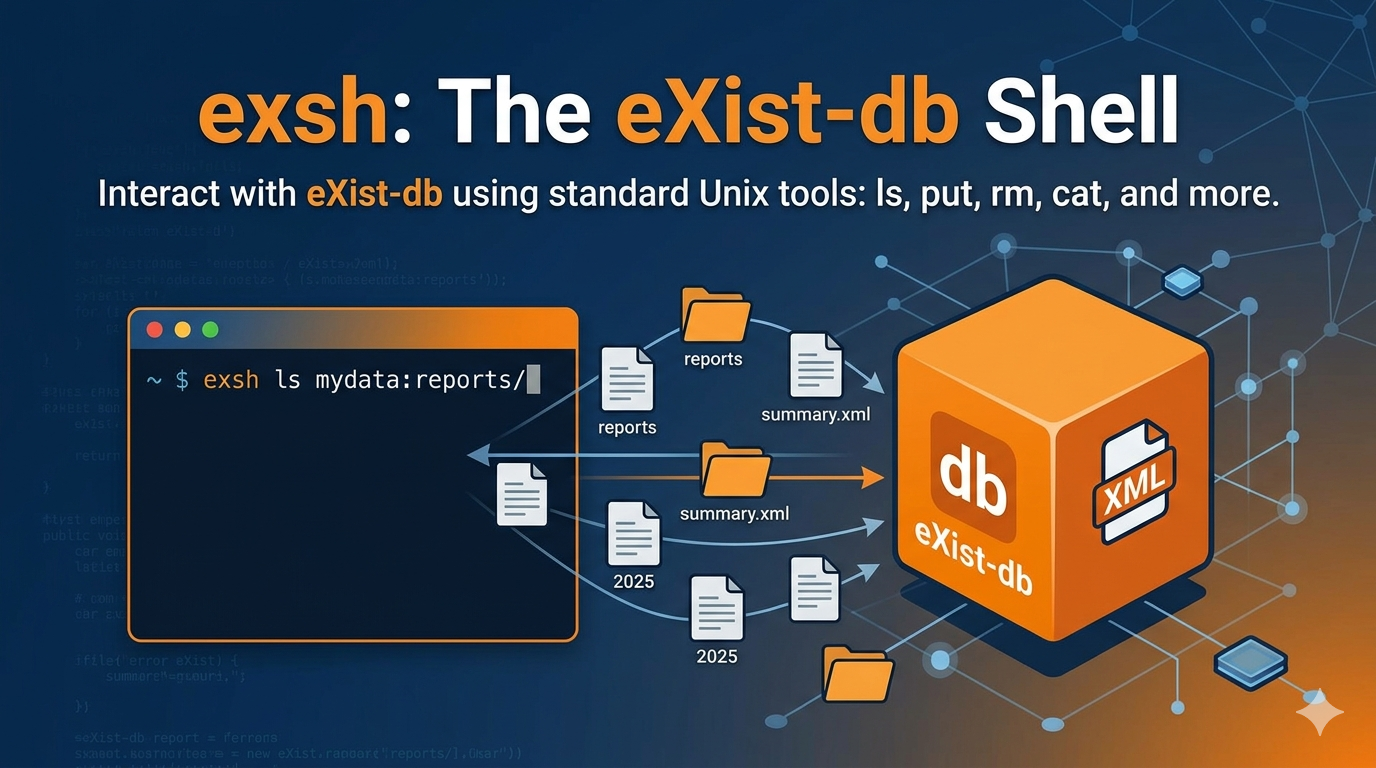
exsh treats eXist-db collections and documents the way a Unix shell treats directories and files. The command names are familiar on purpose: ls, cat, put, rm, mkdir, cp, mv, edit. If you know how to use a terminal, you already know most of exsh.
Getting started
Well, to use exsh, you need Python, and the easiest way to install it, is using uv. It it not yet available in PyPI because I am unable to authenticate, and waiting for feedback from the PyPI support team for two weeks. For now, you need to install it from the GitHub repository:
uv tool install git+https://github.com/ambs/exist-shellIf everything goes well, the command exsh will be available in your shell. To start using it, you need to configure an eXist-db server, and then, add a collection. While it can be useful to access files independently of configuring collections, this was a design decision, to simplify the interaction and command lines.
To register a server and a collection use the following syntax:
exsh server add localhost --port 8080 --user admin
exsh collection add mydata@localhostThat’s it. mydata is now a shorthand for /db/mydata on your local server.
Day-to-day usage
Browse and read documents just like a filesystem. Either refer to the collection only, or add the path inside the collection, as you can see in lines 2 and 3 in the next block:
exsh ls mydata
exsh ls mydata:reports/2025
exsh cat mydata:reports/2025/summary.xmlYou can upload, copy or delete files. You can even copy files across different collections in different servers:
exsh put report.xml mydata:reports/2025/report.xml
exsh cp mydata:reports/2025/report.xml ./local-copy.xml
exsh rm mydata:reports/2025/old.xmlIf you need to edit a file, and do not want to use an IDE with an eXist-db plugin, you can use the edit command. It will open the document your $EDITOR — exsh downloads it, opens the editor, and re-uploads only if you saved changes:
exsh edit mydata:reports/2025/summary.xmlWhile not exactly a common shell command, you can even execute XQuery, and thus, pipe the XQuery results straight to the terminal:
echo 'count(collection("/db/mydata"))' | exsh exec mydata:/
exsh exec mydata:/ -f analytics.xqSync
The sync command transfers an entire folder tree between a local directory and a remote collection. It only transfers files that have changed, using SHA-256 hashes (push) or last_modified timestamps (pull). Direction is inferred from argument order:
# push local → remote
exsh sync ./reports mydata:reports

# pull remote → local
exsh sync mydata:reports ./reports

# preview without transferring
exsh sync --dry-run ./reports mydata:reports

# also remove files that no longer exist on the source
exsh sync --delete ./reports mydata:reportsInterrupted syncs resume near where they left off thanks to a local manifest flushed every N files (configurable with --checkpoint-every).
User and permission management
exsh can also manage users, groups, and POSIX-style permissions on the server:
exsh user ls @localhost
exsh user add alice@localhost
exsh group add editors@localhost

exsh chown alice:editors mydata:reports/annual.xml
exsh chmod 0644 mydata:reports/annual.xml
exsh chmod -R u+x mydata:scriptsWhat’s next
There are several features in the pipeline:
exsh find— search documents by XPath or content across a collection treeexsh diff— compare a local file against its remote version- Batch operations — apply a command to the results of a query
- Watch mode — automatically sync when local files change
- Multiple output formats — JSON and TSV for
lsandexecoutput, for easier piping intojqor spreadsheets
Contributions welcome
exsh is open source and actively developed. If you use eXist-db and have a workflow that exsh doesn’t cover yet, I’d love to hear about it — open an issue or send a pull request at github.com/ambs/exist-shell.
Bug reports, feature requests, and documentation improvements are all welcome.
This blog post was bootstrapped using an AI tool.